
The image below is good visual representation of the mail flow path to the users inbox. Note the intermediate stop, 3rd party spam filter, before hitting the user's inbox. In addition to this, there are also spam filters that analyze after hitting the user's inbox.
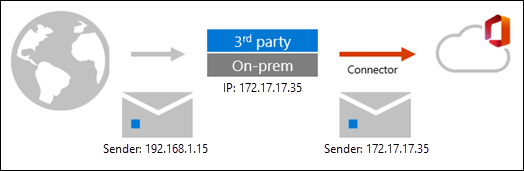
Whitelisting is important at the mail server because it helps to prevent spam. When a sender is whitelisted, their emails are automatically delivered to the recipient's inbox, rather than being filtered into the spam folder. Spam filters user a variety of methods to identify and filter spam emails, so it is important to whitelist in the mail server (O365) as well as the spam filter (e.g. Proofpoint, Barracuda, Mimecast, etc.) When using a 3rd party cloud spam filter, as seen above, the message adopts the source IP of the 3rd party service, appliance, or on-premises Exchange organization that sits in front of Microsoft 365. The message arrives in Microsoft 365 with a different source IP address. In other words, the sender IP will change from the original sender (BSN) to that of the spam filter (or whatever is in front of O365), which in some cases may also need to be whitelisted at the O365 level.
Recommended Steps to take
The first thing to do is to make sure you have run (or rerun) the whitelisting PowerShell script to ensure the IPs, domains, Simulation URLs, and connector policies are in place. Additionally, ensure you have also ran the ATP Bypass PowerShell Script attached to this article. You can find our most up to date whitelisting instructions here.
Note: Errors may show in the script saying policies may be in place already, these can be ignored as we are running the scripts again to ensure that everything is there
Once the scripts have been run, create a few test campaigns for the client to run about 2-4 hours after the script and wait to see what the results are. Changes in Microsoft can take up to six hours to take effect so you may see some emails come through but others don't. Or no change at all immediately. It is a good recommendation to create a campaign to run at least 2 hours after troubleshooting and then schedule another one to run in a few hours after the initial test for confirmation.
Pre-delivery Filters
If you are using a pre-delivery filter or solution, such as Barracuda, Proofpoint, Mimecast, etc., you need to whitelist our phishing test domains and sender IP addresses at the filter or solution level. This means that you need to log in to your filter or solution dashboard and add our phishing test domain and sender IP addresses to the allowed list or safe senders list. You will also need to add exclusions for our domains and sender IP addresses to any link rewriting, inspection, attachment processing or AI analyzing features in these filters as well where applicable. You can find the step-by-step guide with screenshots for different pre-delivery filters or solutions by searching our help center. Note, you may need to reach out to the third party service provider for specific instructions if none are found on our help center.
Post-deliver Filters
If you are using a post-delivery filter or solution, such as Datto SAAS Defense, Ironscales, etc., you need to whitelist our phishing test domains and sender IP addresses at both the filter or solution level and the email system level. This means that you need to log in to your filter or solution dashboard and add our phishing test domains and sender IP addresses to the allowed list or safe senders list, as well as log in to your email system and add our phishing test domain and sender email address to the trusted senders list or contacts list. You can find the step-by-step guide with screenshots for different post-delivery filters or solutions by searching our help center. Note, you may need to reach out to the third party service provider for specific instructions if none are found on our help center.
Whitelisting by Email Header
We typically recommend whitelisting BSN's simulated phishing emails and training notifications by our sender IP addresses or domains. However, certain system set-ups will require whitelisting by email header instead.
Note: our recommendations for whitelisting by email header will apply to the client's mail server usually. You will still need to whitelist BSN's IP addresses or hostnames in the spam filter.
The most common reason why you'll want to whitelist the BSN emails by email header is if you're using a cloud-based spam filter. Since the emails will first arrive in your spam filter, the IP address or domains on the emails will change to that of the spam filter before arriving to your mail server as seen below. Thus, whitelisting by BSN's IP addresses or domains alone in the mail server may not be effective.
You will need to use this alternative method of whitelisting by header to ensure phishing emails make it through to your end-users.
Avoiding Link rewriting and Intent Analysis
Sometimes, common spam filters such as Barracuda, Proofpoint, Ironscales, and Datto SAAS Defense will have link-following or link-inspection options. If enabled, these options may result in skewed click-through rates or click-through rates showing 100%.
You can whitelist or exempt our emails from being affected by these options. You can also disable these options for the duration of a phishing campaign if applicable.
Every phishing email is showing as "clicked"
This is very likely a link filter that is enabled on their anti-spam or email filtering service. Several email services offer a "link checking" or "anti-phishing" functionality.
The first step is to review the IP address in the in-portal report and then reverse look up the IP address to identify if the click is legitimate or if it is a false positive by the spam filter or Microsoft.
The next step is to ensure you have whitelisted either our domains/IP addresses.
Next, if you have whitelisted, and you still see 100% click rate, then there are two options:
Option 1: Disable the link filtering/inspection in the email service tool.
Option 2: Have us send our emails directly to your mail server and bypass your filtering service with Direct Mail Delivery (O365 w/Azure sync setup Required).
Comments
0 comments
Article is closed for comments.